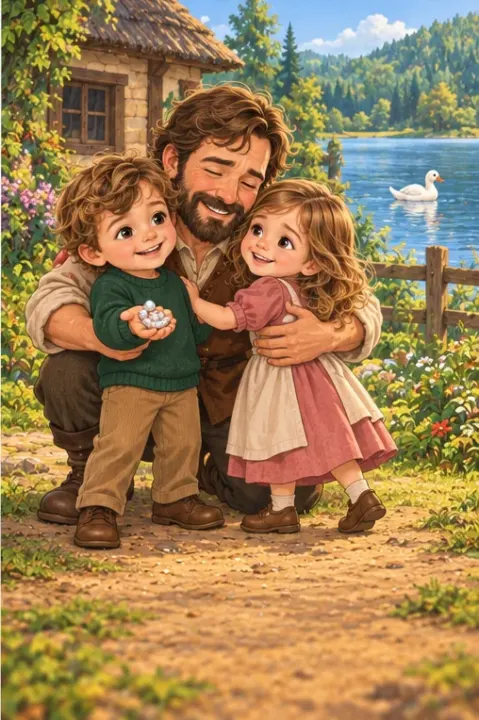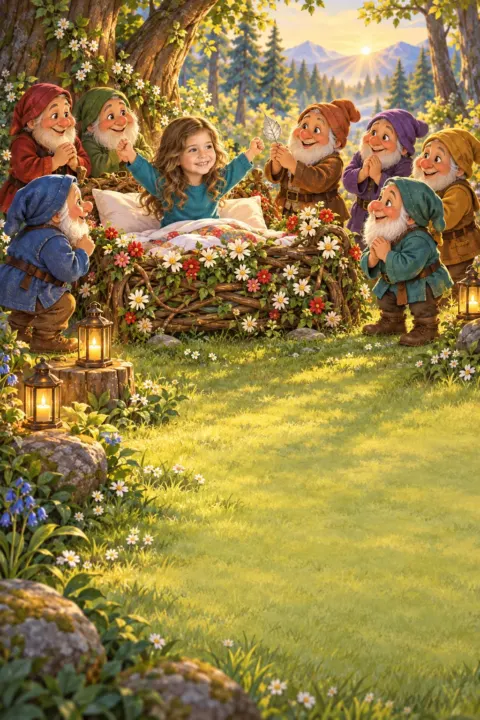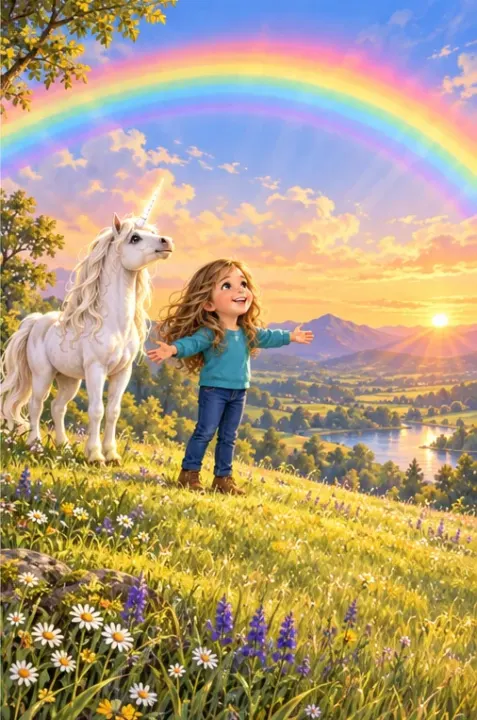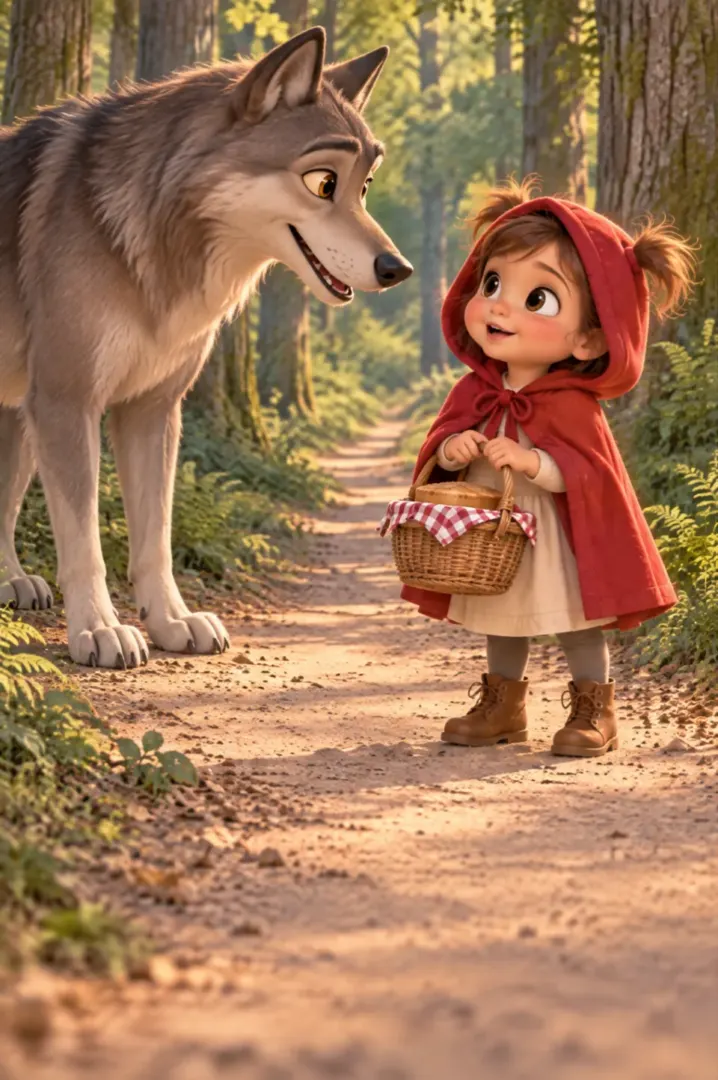
A photo-personalised book starts with a story and a reference photo. I Am In the Story uses AI to generate the text and pictures for your choices; each finished page needs a read-through before you share it. This is the process on our service, rather than a description of every personalised-book company.
1. Choose the story and its roles
Pick a ready-made tale or start with your own idea. Check the characters available for that story. A sibling, parent or grandparent can take a supporting role where the story allows it, within the book’s character limit.
2. Prepare a clear photo
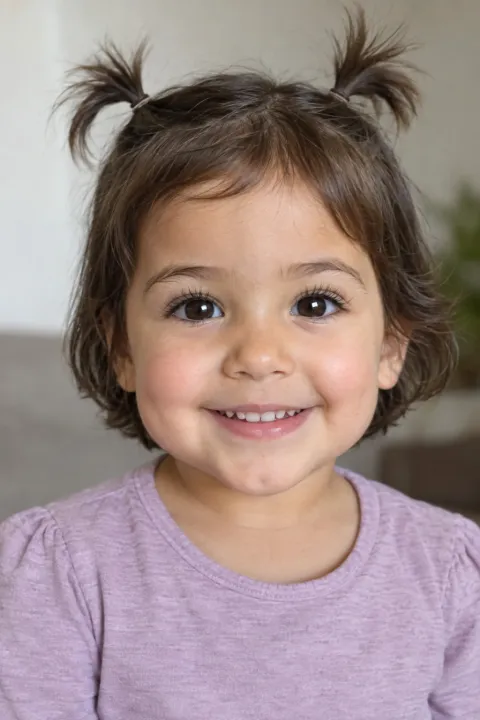
Use a recent, front-facing photo with the eyes visible, natural light and an uncluttered background. Ask permission before using someone else’s child’s photo. Read our photo guide and the service’s privacy policy before uploading.
3. Choose the book settings
Choose the child’s age, language, book length and picture settings. The cost depends on the choices shown in the book maker. Compare the current illustration settings rather than assuming a style from a previous example will be the default.
4. Wait for the book to finish
Generation takes time and can vary with the book and service demand. Do not promise a child an exact number of minutes. If a book cannot be completed, the service’s stated policy is to return its credit cost automatically.
5. Look at the whole result
Check every page: names, spelling, face, clothes, continuity and ending. A recognisable first page is useful, but it does not tell you whether the child stays recognisable later.
6. Decide how to read or give it
The finished book is digital. Read it on screen, download it as a PDF, or turn on sharing and send the link to family; you can turn sharing off again at any time.
Continue with what a digital book does well, or check the main service’s current process before making yours.
Language:Deutsch Français Italiano Nederlands Svenska Dansk Norsk